Card 1: energy source
Front: What energy source drives photosynthesis?
Back: Light energy.
 Memorizite
Your notes are written. Making the cards is the next job. Memorizite's AI flashcard generator turns a PDF, TXT or Markdown file into questions you can practise. Upload one lesson, check the answers and start with the concepts you find hardest to explain.
trial account · 10 total scans during a 7-day card-required trial. Open the app, select “Start learning for free”, then choose Flashcards and upload your file.
Create free flashcardsAlready signed in? Choose Flashcards to start a new upload. See plans and allowances.
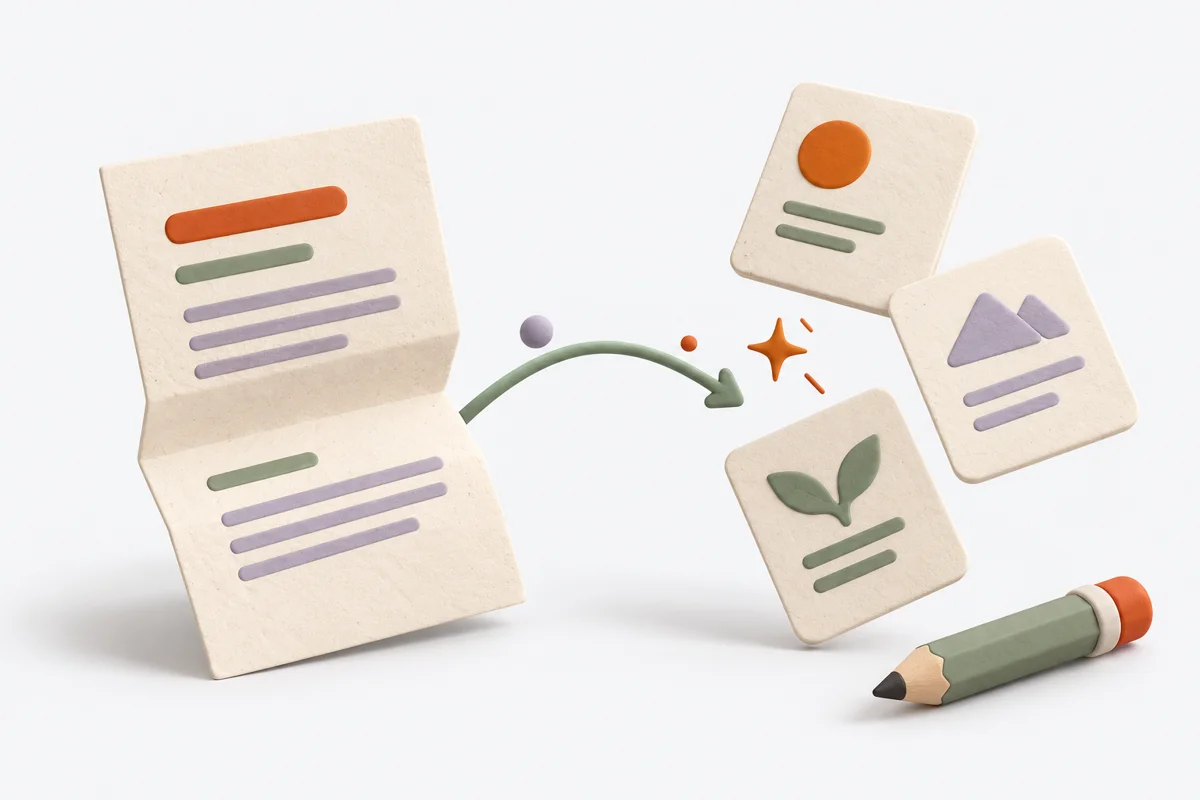
Worked example: a short biology note
Source text:
Photosynthesis uses light energy to convert carbon dioxide and water into sugars, releasing oxygen. In plants, photosynthesis takes place in chloroplasts.
One note can make two useful questions. These cards were written for this example; your upload may produce different wording and a different number of cards.
Front: What energy source drives photosynthesis?
Back: Light energy.
Front: In which plant-cell structures does photosynthesis take place?
Back: Chloroplasts.
Try both questions with the answers covered. If “chloroplasts” came easily but the energy source did not, you know which part to revisit in the lesson.
Preparing your first PDF? Follow the PDF-to-flashcards upload guide. For review technique, read how to write and check focused flashcards.
A card works well for a term or a short explanation. If you want to distinguish similar answers or put steps in order, choose Games on a new upload. The activities available will depend on what your notes contain. Explore the study games and their practice formats.
Check technical material carefully. A missing minus sign or a table read in the wrong order can change the meaning of an answer. For terminology lists, see the vocabulary practice guide.
trial account · 10 total scans during a 7-day card-required trial. Open the app, select “Start learning for free”, then choose Flashcards and upload your file.
Create free flashcardsAlready signed in? Choose Flashcards to start a new upload. See plans and allowances.
Before you upload, check what the free flashcard plan includes: the monthly scan allowance, supported practice formats and the features that require a subscription. Start with one short lesson so you can check the questions against your notes.
Use the same upload workflow with a focused lesson from your course.
Compare the depth of recall and explanation appropriate to your course.
See original examples that show how to prepare notes for one topic at a time.